Table Memo1.3.6
Publisher Description


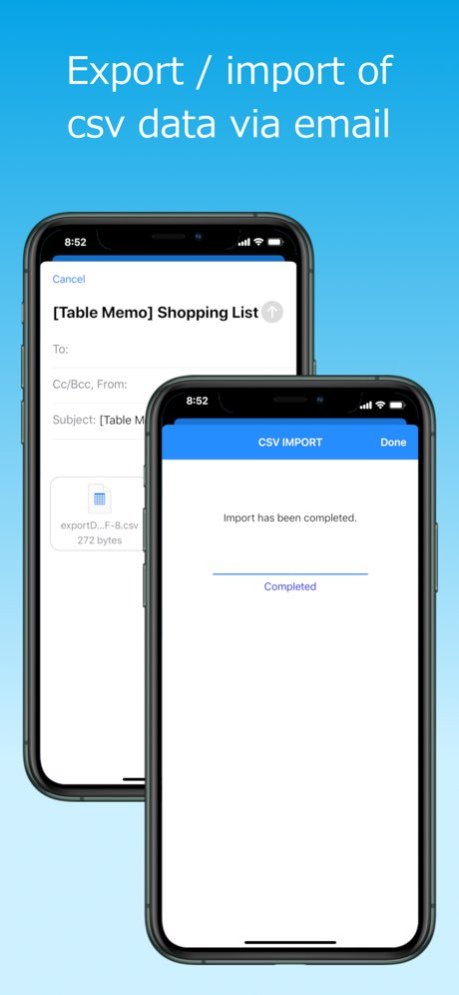
Table Memo is simple memo app of spreadsheet form.
Each memo has a header of several columns, and has rows of memo.
You can add/delete columns, edit each item name, add/delete/copy/move rows of memo.
Created/edited memo can be sent by mail as CSV (with values encapsulated in double quotes) formatted data (UTF-8 encoding).
You can also use Table Memo app as simple CSV (with values encapsulated in double quotes) viewer(use iOS mail app).
How to use:
1. Create Memo
At memo list view (first view of this app), tap add('+') button, and input the memo title.
By tapping Edit button, you can edit memo name, delete memo, and reorder list.
2. Edit Memo data
Select the created memo, and open memo table view.
Tap each cell you want edit, and edit the data.
If color mode is on, text and cell color also can be changed.
To add new row, tap add('+') button.
To copy or delete row, tap the row number of left side and select operation.
By double tapping a cell, the entire contents of the cell is displayed, so you can check and copy the contents.
At the bottom of memo table view, there are four buttons, 1) trash button, 2) action button, 3) table settings button, 4) reorder button, from left to right.
1) trash button
You can delete current opened memo.
2) action button
Current opened memo can be duplicated, or can be sent by mail as CSV formatted data.
3) table setting button
Table settings view will open (see below).
4) reorder button
By tapping this button (the reorder button changes to the edit button), memo table becomes the reorder mode, and you can reorder rows by dragging each row.
To back to edit mode, tap the edit button.
3. Table Settings
1) Use Color switch
If set ON, text and cell color becomes changeable.
[[CAUTION]] If set OFF after using color, all color data will clear.
2) MEMO TITLE section
Select memo title and edit the title.
3) Left Inset setting
You can adjust the space on the left side of the cell.
4) Font Size setting
You can change the font size of the table.
5) Columns section
To add new column, tap add('+') button.
To delete column or reorder columns, tap Edit button.
By selecting each ITEM of columns, column edit view will open (see below).
4. Column edit
1) ITEM name section
You can edit item name.
2) Column width section
You can change column width by slider.
By tapping the adjust button, the column width will be set to the width of existing data.
*You can also open this view by long press of header item at memo table view.
5. Settings
Tapping settings button at memo list view, SETTINGS view will open.
You can change settings below:
1) THEME of this app
2) settings of CSV export/import
- encoding of CSV data
- export header
- import 1st row as header
3) default column name and default number of columns.
Version History Fix a bug that memo not being opened when there were too many columns 1.3.6 06/04/2025 Adapted to iOS 14 or later.
Fix wrong safe area settings on iPhone14 Pro Max. 1.3.5 04/26/2023 Adapted to iOS 13 or later 1.3.3 08/26/2022 small bug fixes
support iOS 12 or later 1.3.2 09/07/2021 small bug fixes
support iOS 11 or later 1.3.1 06/04/2020 - Add font size change function.
- Add function to adjust inset.
- Add value check function by double tap of cell.
- Support iOS10.3 or later.
- Fix minor bugs. 1.3.0 09/14/2018 - Support iOS9.3 or later
- Fix minor bugs 1.2.2 09/14/2017 - Scroll positions are saved when closing memo.
- Fix minor bug. 1.2.1 09/17/2015 - Text and cell color has become changeable.
* To use color on the memo created by previous version, turn on the color mode at table settings of each memo.
- fix small bugs. 1.2.0 07/06/2015 - optimized for iPhone6.
- fix problems that occur on iOS8.
- fix other small bug. 1.1.1 10/08/2014 Added In-App Purchases to remove Ads. To do purchase, tap the 'Remove ads' menu in the SETTINGS.
Fixed some small bugs. 1.1.0 04/21/2014 small bug fix 1.0.1 01/17/2014 1.0.0 01/14/2014
About Table Memo
The company that develops Table Memo is RYOICHI KAWAHARA. The latest version released by its developer is 1.3.6.
To install Table Memo on your iOS device, just click the green Continue To App button above to start the installation process. The app is listed on our website since 2026-10-13 and was downloaded 12 times. We have already checked if the download link is safe, however for your own protection we recommend that you scan the downloaded app with your antivirus. Your antivirus may detect the Table Memo as malware if the download link is broken.
How to install Table Memo on your iOS device:
- Click on the Continue To App button on our website. This will redirect you to the App Store.
- Once the Table Memo is shown in the iTunes listing of your iOS device, you can start its download and installation. Tap on the GET button to the right of the app to start downloading it.
- If you are not logged-in the iOS appstore app, you'll be prompted for your your Apple ID and/or password.
- After Table Memo is downloaded, you'll see an INSTALL button to the right. Tap on it to start the actual installation of the iOS app.
- Once installation is finished you can tap on the OPEN button to start it. Its icon will also be added to your device home screen.
Program Details
System requirements
Download information
Pricing
Version History
version 1.3.6
posted on 2026-10-13
Version History Fix a bug that memo not being opened when there were too many columns 1.3.6 06/04/2025 Adapted to iOS 14 or later.
Fix wrong safe area settings on iPhone14 Pro Max. 1.3.5 04/26/2023 Adapted to iOS 13 or later 1.3.3 08/26/2022 small bug fixes
support iOS 12 or later 1.3.2 09/07/2021 small bug fixes
support iOS 11 or later 1.3.1 06/04/2020 - Add font size change function.
- Add function to adjust inset.
- Add value check function by double tap of cell.
- Support iOS10.3 or later.
- Fix minor bugs. 1.3.0 09/14/2018 - Support iOS9.3 or later
- Fix minor bugs 1.2.2 09/14/2017 - Scroll positions are saved when closing memo.
- Fix minor bug. 1.2.1 09/17/2015 - Text and cell color has become changeable.
* To use color on the memo created by previous version, turn on the color mode at table settings of each memo.
- fix small bugs. 1.2.0 07/06/2015 - optimized for iPhone6.
- fix problems that occur on iOS8.
- fix other small bug. 1.1.1 10/08/2014 Added In-App Purchases to remove Ads. To do purchase, tap the 'Remove ads' menu in the SETTINGS.
Fixed some small bugs. 1.1.0 04/21/2014 small bug fix 1.0.1 01/17/2014 1.0.0 01/14/2014
version 1.3.6
posted on 2025-06-04
Fix a bug that memo not being opened when there were too many columns
version 1.3.6
posted on 2025-06-04
Jun 4, 2025
Version 1.3.6
Fix a bug that memo not being opened when there were too many columns
version 1.3.5
posted on 2023-04-26
Apr 26, 2023
Version 1.3.5
Adapted to iOS 14 or later.
Fix wrong safe area settings on iPhone14 Pro Max.
version 1.3.3
posted on 2022-08-26
Aug 26, 2022
Version 1.3.3
Adapted to iOS 13 or later
version 1.3.2
posted on 2021-09-07
Sep 7, 2021 Version 1.3.2
small bug fixes
support iOS 12 or later
version 1.3.1
posted on 2020-06-04
Jun 4, 2020 Version 1.3.1
small bug fixes
support iOS 11 or later
version 1.3.0
posted on 2018-09-14
Sep 14, 2018 Version 1.3.0
- Add font size change function.
- Add function to adjust inset.
- Add value check function by double tap of cell.
- Support iOS10.3 or later.
- Fix minor bugs.
version 1.2.1
posted on 2014-01-15
version 1.3.1
posted on 1970-01-01
4 de jun. de 2020 Version 1.3.1
small bug fixes
support iOS 11 or later
